Upgrading from an old mechanical hard drive to a Solid-State Drive (SSD) is the single fastest way to breathe new life into a sluggish computer. However, when shopping for storage today, you are immediately faced with two dominant acronyms: SATA and NVMe.
While an NVMe drive can theoretically transfer data more than ten times faster than a SATA drive, real-world everyday performance is not always as dramatic as the numbers on the box suggest. Understanding how these drives connect to your computer, how they impact daily tasks, and where each offers the best value will help you spend your budget wisely.
What Is a SATA SSD?
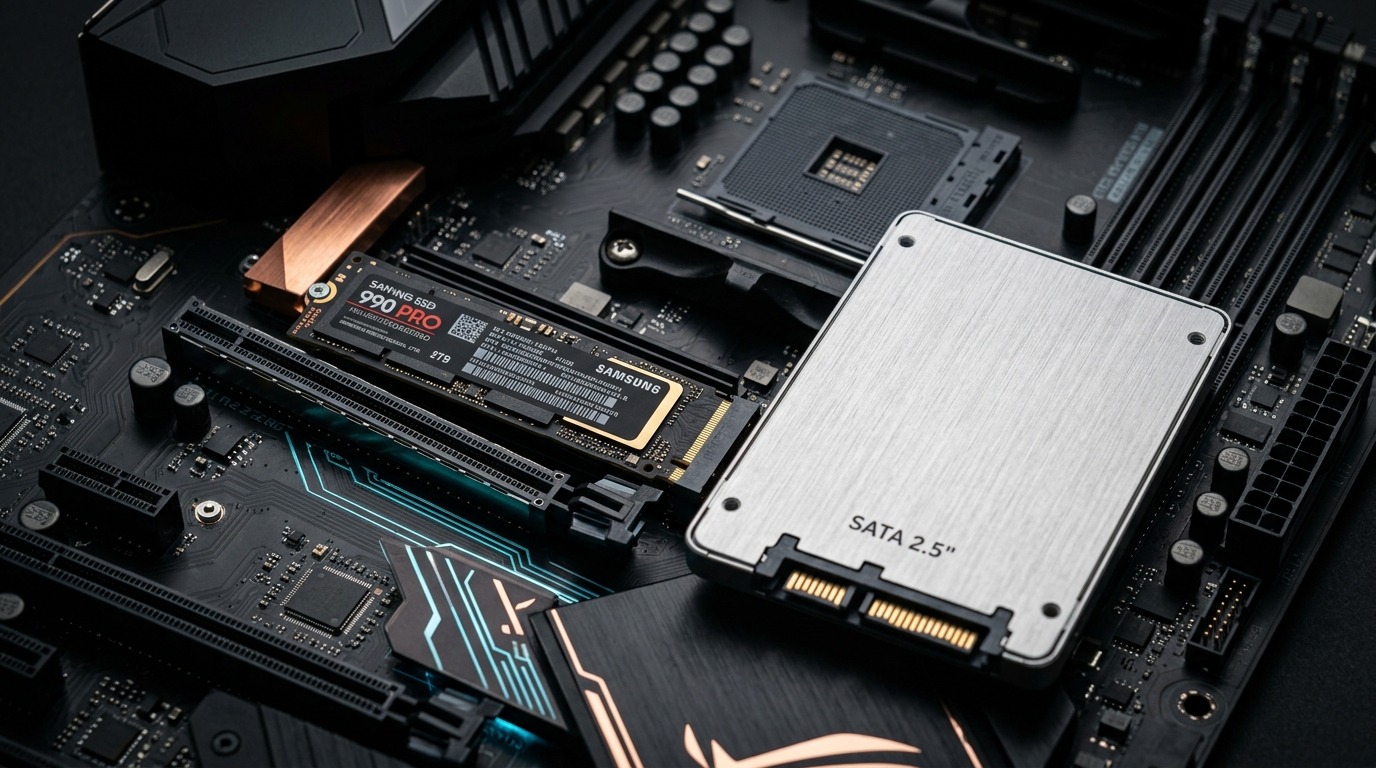
SATA (Serial Advanced Technology Attachment) is an older interface originally designed for spinning mechanical hard drives. When SSDs first became mainstream, they adopted the SATA standard—typically housed in a 2.5-inch rectangular casing—so they could easily fit inside existing desktop towers and laptops.
- Speed Limits: Standard SATA III connections cap out at roughly 550 to 600 MB/s (megabytes per second).
- Universal Compatibility: Nearly every desktop PC and older laptop built in the last 15 years supports 2.5-inch SATA drives.
- Best Use Case: Breathing fast, reliable performance into older computers, or adding massive secondary storage for media libraries and backups without overspending.
What Is an NVMe SSD?
NVMe (Non-Volatile Memory Express) is a modern storage protocol built specifically for flash memory. Instead of routing data through slower legacy cables, an NVMe SSD plugs directly into your motherboard's high-speed PCIe (Peripheral Component Interconnect Express) lanes using a compact, gum-stick-sized M.2 slot.
- Blazing Speeds: PCIe Gen 3 NVMe drives reach up to 3,500 MB/s, PCIe Gen 4 models hit 7,000+ MB/s, and cutting-edge Gen 5 drives exceed 14,000 MB/s.
- Cable-Free Design: Because M.2 NVMe drives mount flat against the motherboard, they eliminate power and data cables, improving airflow inside desktop cases and saving space in ultra-thin laptops.
- Best Use Case: Primary operating system drives, heavy 4K/8K video editing, 3D rendering, modern gaming, and large AI or data workloads.
Side-by-Side Comparison: NVMe vs. SATA SSD
| Feature | SATA SSD (2.5-Inch) | NVMe SSD (M.2 PCIe) |
|---|---|---|
| Max Read/Write Speed | Up to 550–600 MB/s | 3,500 to 14,000+ MB/s (Gen 3 to Gen 5) |
| Physical Form Factor | 2.5-inch casing (requires SATA data & power cables) | Compact M.2 stick (screws directly into motherboard) |
| Interface / Bus | SATA III (Legacy storage bus) | PCIe Lanes (Direct CPU/Chipset connection) |
| Windows / macOS Boot Time | Fast (~10–14 seconds) | Slightly faster (~7–10 seconds) |
| Large File Transfers (50GB+) | Moderate (~90+ seconds) | Ultra-fast (~8–15 seconds on Gen 4) |
| Heat & Power Draw | Very low heat; no heatsink required | Higher heat under heavy load; heatsink recommended |
| Price per Terabyte | Affordable ($) | Nearly identical to SATA for Gen 3/4 (–) |
Real-World Performance: Do You Actually Notice the Speed Difference?
One of the biggest misconceptions in computer hardware is assuming a 7,000 MB/s NVMe drive makes web browsing or Microsoft Office feel twelve times faster than a 550 MB/s SATA SSD.
Where They Feel Almost Identical
- Everyday Productivity: Opening Chrome tabs, editing Word documents, checking email, and streaming 4K video rely heavily on small random file reads. In these tasks, both SATA and NVMe feel instantaneous.
- Booting Up Your PC: An NVMe drive might shave only two or three seconds off your Windows startup time compared to a quality SATA SSD.
Where NVMe Crushes SATA
- Video Editing & Content Creation: Scrubbing through uncompressed 4K timelines and exporting massive project files happens dramatically faster on NVMe.
- Modern Gaming (DirectStorage): Newer PC games and current-generation consoles (like the PlayStation 5, which requires a PCIe Gen 4 NVMe SSD) stream textures directly from the drive to the graphics card, cutting loading screens down to seconds.
- Moving Huge Backups: Copying a 100GB folder of raw photos or virtual machines takes a fraction of the time on an NVMe drive.
3 Things to Check Before Buying an SSD
- Verify Your Motherboard or Laptop Slots: Not every M.2 slot supports NVMe—some older budget laptops use M.2 slots wired only for SATA speeds. Check your device manual for "M.2 PCIe NVMe" compatibility before ordering.
- Don't Overpay for PCIe Gen 5: Unless you are a professional workstation user moving terabytes of data daily, a PCIe Gen 4 NVMe SSD hits the sweet spot of price, low heat, and top-tier speed.
- Look for DRAM Cache or HMB: For your primary Windows or macOS drive, choose an SSD with built-in DRAM cache (or Host Memory Buffer on NVMe) so write speeds stay fast even when the drive is more than 70% full.
The Bottom Line
If your computer has an open M.2 PCIe slot, buy an NVMe SSD—prices have dropped so close to SATA drives that there is rarely a reason not to take the massive bandwidth upgrade. However, if you are upgrading an older laptop without an M.2 slot or adding affordable bulk storage to a desktop that has run out of M.2 bays, a 2.5-inch SATA SSD remains a fast, dependable, and budget-friendly choice.