Slow internet speeds, buffering videos, and dropped video calls are among the most frustrating daily tech problems. When a Wi-Fi connection starts lagging, many people immediately assume they need to upgrade to a more expensive internet plan or buy a pricey new router.
In reality, weak home Wi-Fi is most often caused by simple signal interference and poor router placement rather than slow internet service. Before spending any extra money, try these five simple adjustments to instantly boost your home Wi-Fi speed and coverage.
1. Move Your Router to a Central, Elevated Location
Wi-Fi signals travel outward and downward in waves, much like ripples in a pond. Hiding your router inside a closet, behind a television, or on the floor in a far corner of the house drastically blocks those signals before they ever reach your devices.
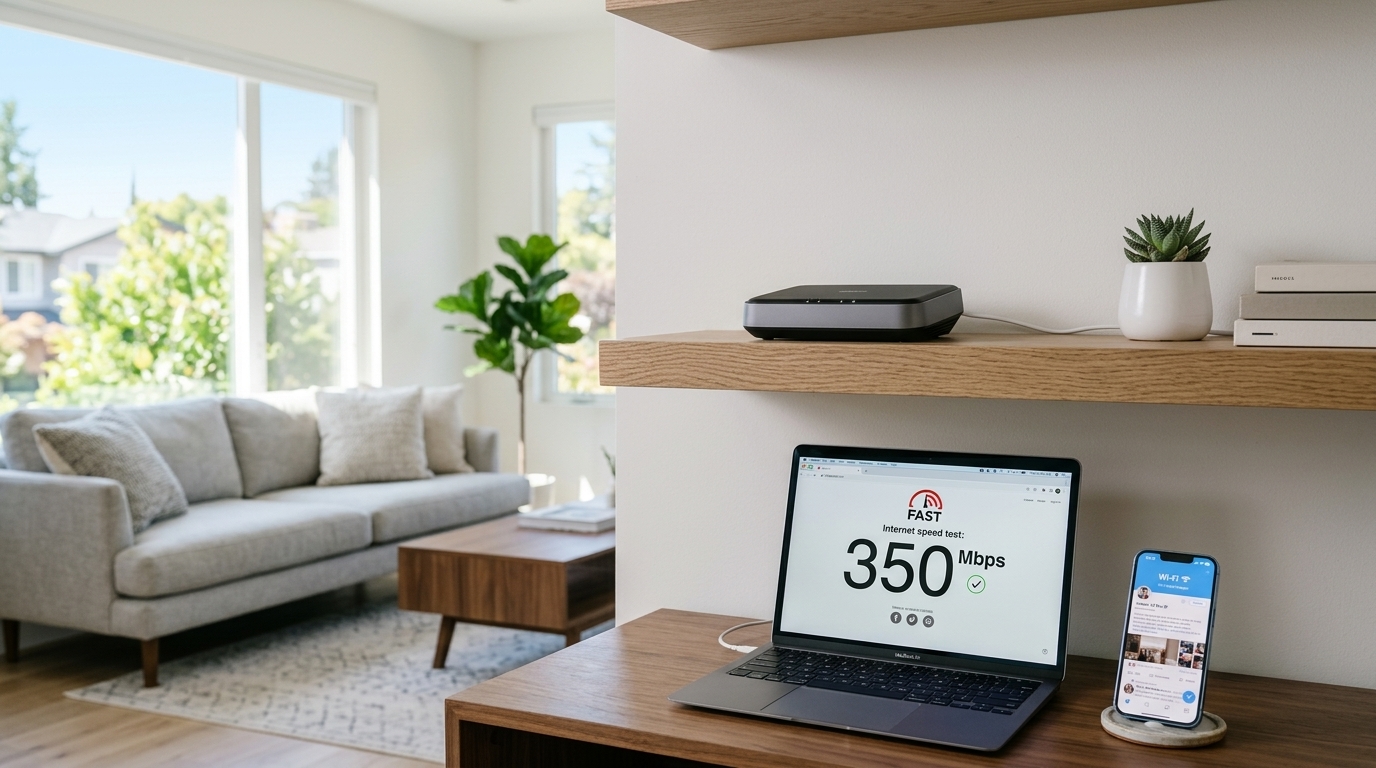
- The Smart Fix: Place your router in the most central room of your home and elevate it on a high shelf or wall mount. Keeping it out in the open and away from thick concrete walls, large mirrors, and metal appliances allows the signal to spread evenly across every room.
2. Switch to the 5 GHz Frequency Band
Most modern dual-band routers broadcast two separate wireless signals: 2.4 GHz and 5 GHz. While the 2.4 GHz band travels slightly farther through walls, it is heavily crowded and much slower because older household devices use it.
- The Smart Fix: Open the Wi-Fi settings on your smartphone, laptop, or smart TV and connect directly to the network name ending in 5G or 5 GHz. This frequency band offers significantly faster download speeds and much less interference, making it ideal for high-definition streaming and online gaming.
3. Keep Your Router Away from Kitchen Appliances
You might not realize it, but everyday household electronics emit electromagnetic waves that directly disrupt wireless internet signals.
- The Smart Fix: Never place your Wi-Fi router in or near the kitchen. Microwave ovens operate on the exact same 2.4 GHz radio frequency as many Wi-Fi networks—meaning every time someone heats up lunch, your internet connection can drop or slow to a crawl. Baby monitors, cordless phones, and Bluetooth speakers can cause similar interference.
4. Schedule Automatic Weekly Router Reboots
Just like a smartphone or a desktop computer, your Wi-Fi router is a small computer with its own memory and processor. Leaving it running non-stop for months allows temporary data to build up, leading to sluggish performance and random disconnects.
- The Smart Fix: Unplug your router from the power outlet for 30 seconds once every couple of weeks to clear its internal memory and force it to reconnect to the cleanest wireless channel available. Many modern routers even let you schedule an automatic weekly reboot at 3:00 AM through their mobile app.
5. Change Your Router’s Wireless Channel
If you live in an apartment building or a densely populated neighborhood, dozens of nearby routers are competing for the exact same wireless airspace, causing digital traffic jams.
- The Smart Fix: Log into your router’s admin settings (usually via a web browser or the manufacturer's mobile app) and switch the wireless channel setting from "Auto" to a less congested channel—such as Channels 1, 6, or 11 on the 2.4 GHz band. Moving to an open lane immediately improves connection stability.
Enjoying Fast, Reliable Internet Every Day
Optimizing your home network takes less than fifteen minutes and costs nothing at all. By positioning your router properly and eliminating basic household interference, you can enjoy smooth streaming and fast downloads across all your devices.